




AI Kissing Video Prompt Checklist for Cleaner Two-Person Results
As of May 20, 2026, the fastest way to improve an AI kissing video is still the quiet 2-minute photo check before generation. A better prompt helps, but the model reads faces, shoulders, lighting, and distance first. This checklist gives you a repeatable way to prepare JPG, PNG, or WebP portraits so AI Kissing Video Generator can spend the queue time on motion instead of guessing.

Start With The Two Photos, Not The Prompt
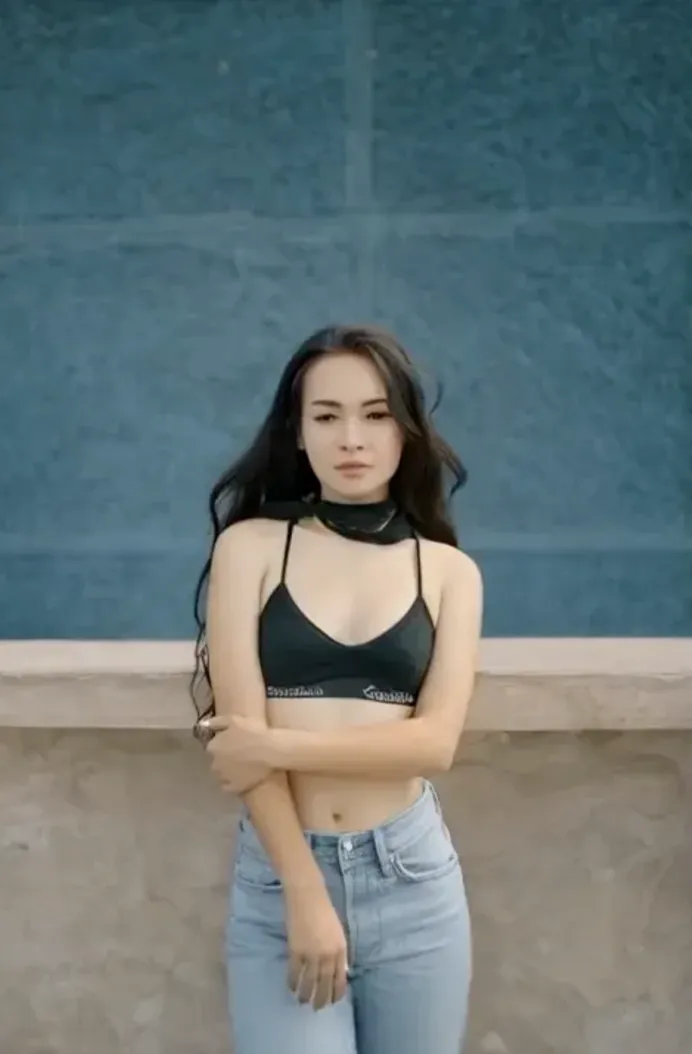
Use two images that look like they belong in the same scene. The faces should be clear, the heads should be close to the same size, and the camera angle should not fight the movement you want. If one photo is a bright front-facing selfie and the other is a dark side profile, the generated clip has to solve too many problems at once.
For the cleanest first pass, open the free AI kissing workflow, upload both portraits, and check the preview area before spending 10 credits on a longer run. The generator also accepts common formats such as JPG, PNG, and WebP, which makes it easier to test a corrected crop without changing your whole setup.
The 5-Point Prompt Checklist
| Check | What to look for | Quick fix |
|---|---|---|
| Face visibility | Both faces are unobstructed | Choose a clearer portrait |
| Similar scale | Heads are close in size | Crop the wider image tighter |
| Matching light | Shadows point in a similar direction | Pick photos from the same room or time |
| Natural expression | No extreme squinting or turned-away faces | Use relaxed, front-facing portraits |
| Simple instruction | The prompt asks for one clear motion | Avoid stacking camera moves |
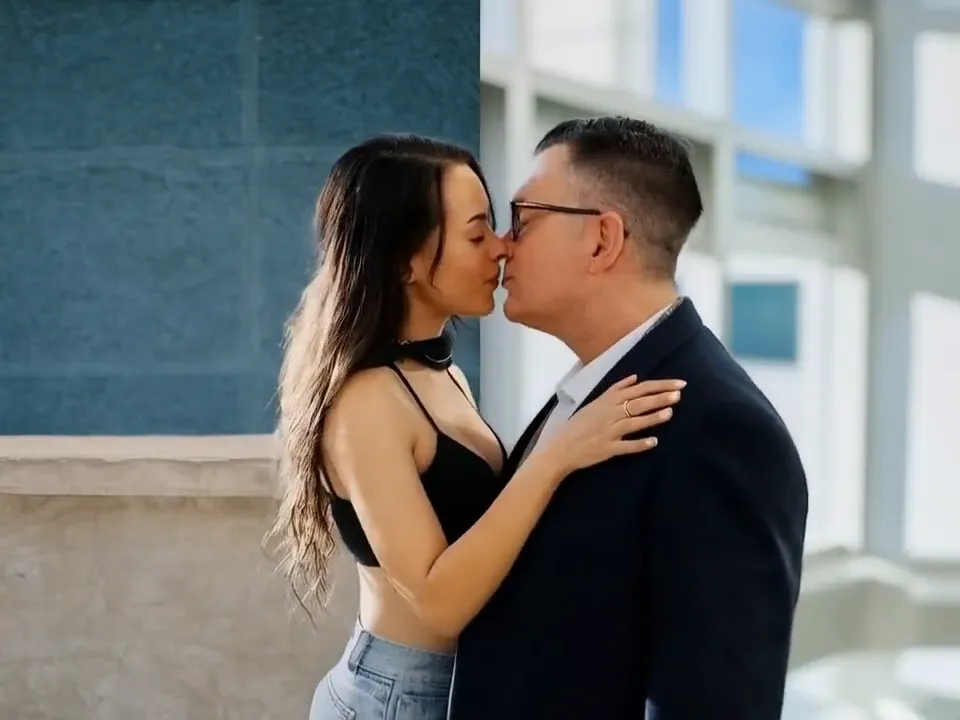
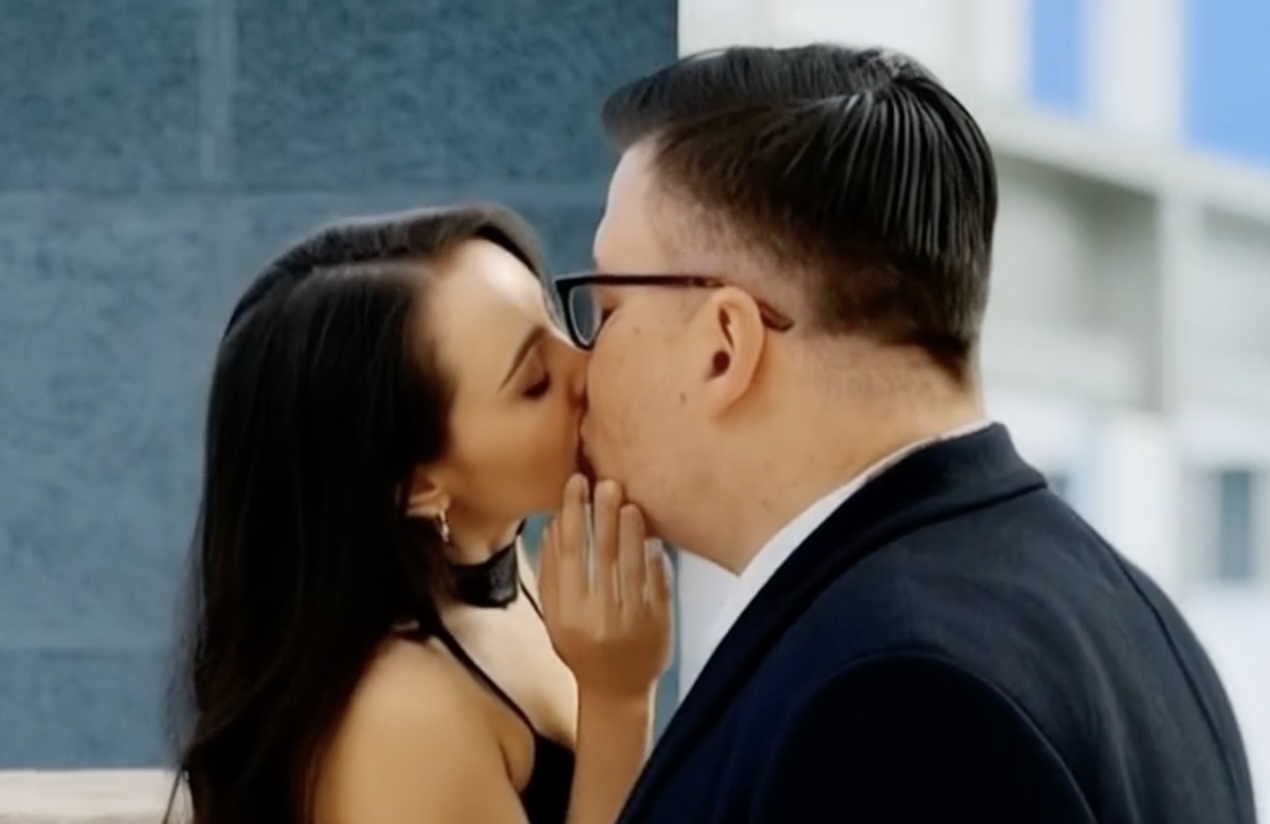
Write the prompt like a direction for a short clip: "create a gentle romantic kiss, natural head movement, soft expression, steady camera." Keep it public-friendly and specific. If you want a cheek moment instead, the AI cheek kiss generator gives you a cleaner starting point than forcing the same prompt into a different gesture.
A Before And After Example
Weak setup: one close selfie, one full-body photo, mixed lighting, and the prompt "make them kiss beautifully." The result often feels stiff because the model must infer scale, position, and motion.
Stronger setup: two shoulder-up portraits, similar brightness, both faces visible, and the prompt "gentle kiss, subtle head turn, warm expression, stable framing." This gives the queue a clearer job and reduces the chance of stretched faces or sudden camera jumps.
For longer romantic clips, compare this workflow with the 10-second AI French kiss generator after you have one clean short result. Longer duration is easier when the first frame pair is already balanced.
Common Mistakes That Waste Credits
Do not upload a photo with sunglasses, heavy shadow, or a face partly outside the frame. Do not ask for three different actions in one prompt. Do not mix a polished studio portrait with a noisy screenshot if you can avoid it.
The practical rule is simple: fix the photo pair before asking the model for more drama. AI Kissing Video Generator can work faster when the input gives it a clear starting point, especially on busy queue periods.
FAQ
Can I use screenshots instead of photos? Screenshots can work, but exported JPG, PNG, or WebP portraits usually give cleaner edges and fewer compression marks.
How many credits should I test with first? Start with one short generation before trying a longer variation. That protects your credits while you check face scale and motion.
What should I do if the first clip looks stiff? Re-crop the wider image, simplify the prompt, and try the free workflow again before changing both photos.